

A logo conversion is an interpretation, not a magic repair
A vectorizer can turn a small raster mark into a cleaner editable starting point, but it cannot recover every lost decision from a blurred or compressed original. The goal is to rebuild the logo’s important structure: the silhouette, spacing, readable lettering and negative space.
Choose a tool based on the kind of result you need. For a high-contrast line-art direction from a PNG, JPG or WebP, InkVectors is designed to make the first conversion straightforward. For a logo with custom type or precise brand geometry, plan to review and refine the result in a vector editor or with the original designer.
Give the mark a clean source
Use the highest-resolution version you can find and isolate the mark from backgrounds, shadows and decorative texture. If the logo contains text, make sure it is readable before conversion; small type and ornamental details are where a poor source reveals itself first.
- Crop around the mark without clipping intentional whitespace.
- Choose a source with strong contrast between the logo and its background.
- Keep the original file, even after you make an editable SVG starting point.
- Compare the outline, spacing and letter shapes with a known good reference before using the result publicly.
Make the final decision at the real logo sizes
Open the converted artwork both very small and very large. At small sizes, look for closed counters, clear negative space and legible letterforms. At large sizes, inspect corners, joins and curves for stray points or lumpy edges.
Keep the editable master separate from web or vendor exports. An SVG can be an excellent master for compatible workflows; a printer, sign shop or brand system may require another delivery format, so confirm before handoff.
See the conversion direction before you prepare the final file
A strong source image can be simplified into clear, high-contrast artwork. Treat the converted result as a production starting point: inspect it at the final size, then confirm the format and detail requirements with the next tool or vendor.
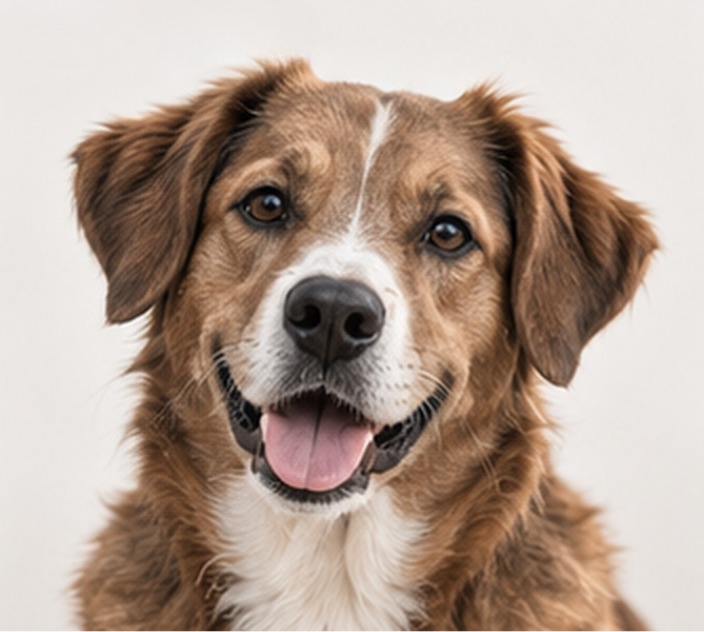
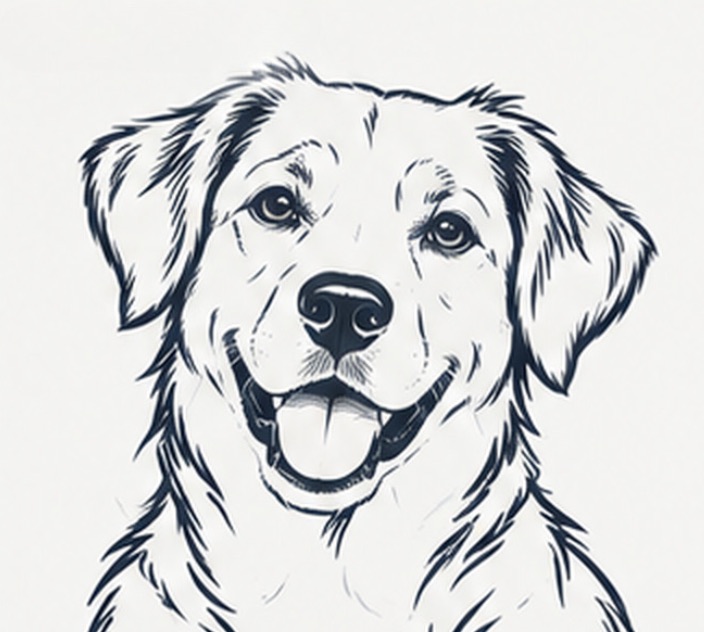
Example artwork illustrates a possible conversion direction. Detail, line weight and suitability depend on the source image and the intended workflow.
Production check before handoff
For a brand-critical logo, treat the conversion as a starting point and compare it with an approved reference. Keep a master file, then create purpose-specific exports for the website, printer or production vendor.
Convert an image- A good logo conversion protects the mark’s proportions, negative space and readable shapes.
- The cleanest source image gives a vectorizer less to guess about.
- Review the resulting artwork at both favicon-size and production-size before using it.