

A clean silhouette cuts more reliably than a detailed picture
PNG-to-SVG conversion can be useful for Cricut-compatible workflows when the source has a bold, readable subject: a simple logo, lettering, icon, stamp or high-contrast illustration. The goal is a clean set of shapes, not a copy of every pixel or texture.
A detailed photo can become stylized line artwork, but it may not become a practical cutting design without simplification. Start with the material, blade and final width in mind so you know how much detail the design can carry.
Set the artwork up for a cutting test
Before cutting your final material, inspect the conversion at the intended physical width. Look for tiny islands, open contours, narrow gaps and brittle details that will be difficult to weed or transfer.
- Use a high-contrast source with a clear background and subject.
- Favour closed shapes and generous gaps over fragile decorative detail.
- Preview the result at the exact width you plan to cut.
- Run a small test cut before committing expensive material.
Let the cutting workflow set the final format
SVG is commonly useful for scalable cutting artwork, but the import settings and supported features of the next application still matter. Open the result in your software, check scale and grouping, then make the final cleanup decisions there.
InkVectors creates a high-contrast artwork direction from JPG, PNG and WebP. Confirm the file and material settings in the cutter’s own software before you make a production cut.
See the conversion direction before you prepare the final file
A strong source image can be simplified into clear, high-contrast artwork. Treat the converted result as a production starting point: inspect it at the final size, then confirm the format and detail requirements with the next tool or vendor.
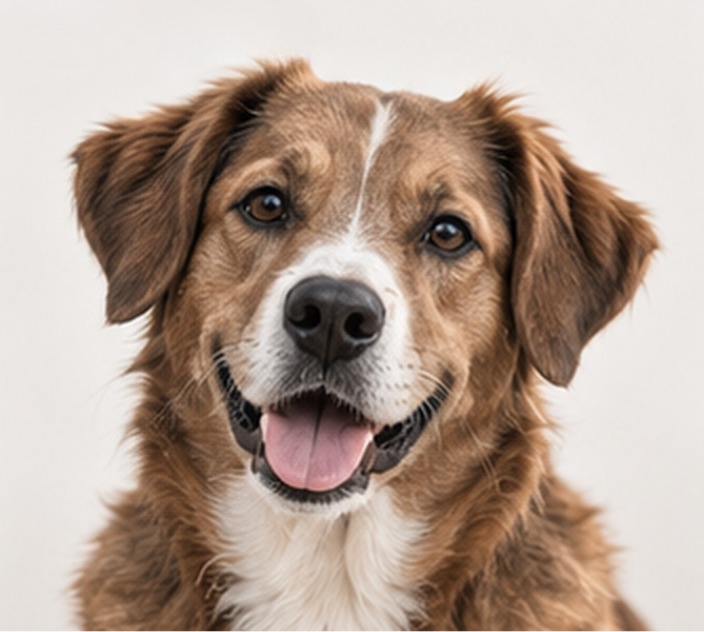
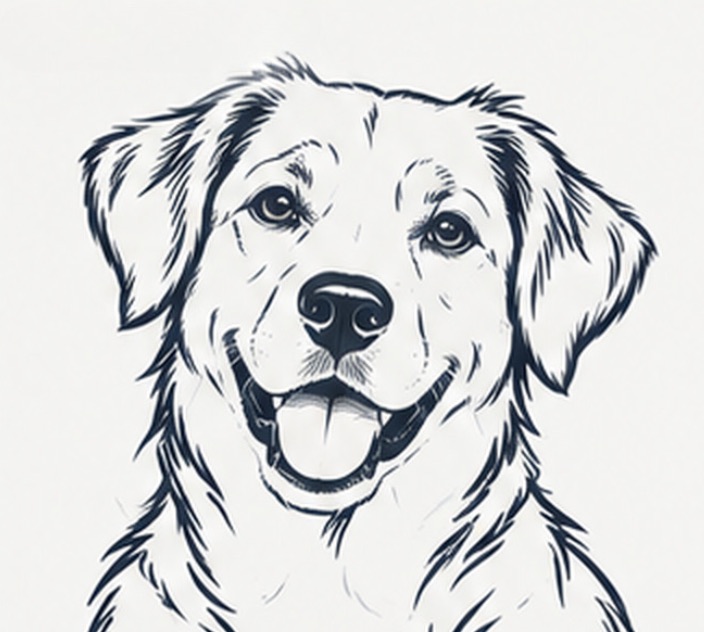
Example artwork illustrates a possible conversion direction. Detail, line weight and suitability depend on the source image and the intended workflow.
Production check before handoff
A converted SVG should be opened and test-cut in the actual cutting workflow. Scale, material and blade settings can change what counts as a practical detail.
Convert an image- Simple, high-contrast sources make more practical cutting artwork than busy photographs.
- Test small gaps, thin details and closed shapes at the real cut size.
- Use a small test cut before committing the final material.