

Start with the job, not the file extension
A file becomes production-ready when the next person can use it without having to guess about scale, colour, transparency or the intended result. Before converting anything, name the job: a website logo, a vinyl cut, a screen-printed T-shirt, an embroidery digitizing request or an editable brand master each asks the artwork to do something different.
That decision keeps the workflow honest. SVG is a strong choice when a compatible tool needs editable paths. PNG is useful when a fixed-size raster file is accepted. A printer, cutter or embroidery provider may request a different format, so their specification is the final authority.
Keep a source file and a delivery file
The source is the cleanest file you have and the version you keep for future edits. The delivery file is what you send for one particular job. They may be the same for a simple SVG logo, but they are not interchangeable by default.
- Keep the original PNG, JPG, scan or camera file, even after conversion.
- Save an editable SVG or other vector master when the workflow supports it.
- Export a transparent PNG only at the final dimensions where a raster file is required.
- Record the intended width, height, colours and background before handoff.
- Ask the vendor for required formats before preparing the final export.
Prepare artwork for the production workflow
For cutting, favour clear silhouettes, closed shapes and enough space between small details. For screen printing, think in intentional colour layers and inspect thin lines at the final garment size. For embroidery, use a simple, readable mark and treat digitizing as a separate specialist step; an SVG is useful artwork, not an automatic stitch file.
For a logo, inspect the paths at small and large sizes, preserve negative space and keep custom lettering under review. For any workflow, remove accidental background detail before conversion and compare the finished result against the source before you send it onward.
Run this one-minute preflight before handoff
This checklist will not replace a vendor proof, but it prevents the most common avoidable surprises. It is designed to be used after conversion and before the artwork leaves your hands.
- The subject has a clean edge and no unwanted paper, room or background texture.
- Small lettering, corners and gaps still read at the final output size.
- The file uses the vendor's requested format and the intended physical dimensions are supplied.
- Colours are intentional, named or separated when the production workflow needs that information.
- An editable master and the original source are stored separately from the delivery export.
A real conversion result is a starting point, not the final sign-off
This before-and-after example shows the kind of simplified line-art direction a raster image can take. Before production, inspect the result at its final size and confirm the format with the next tool or vendor.
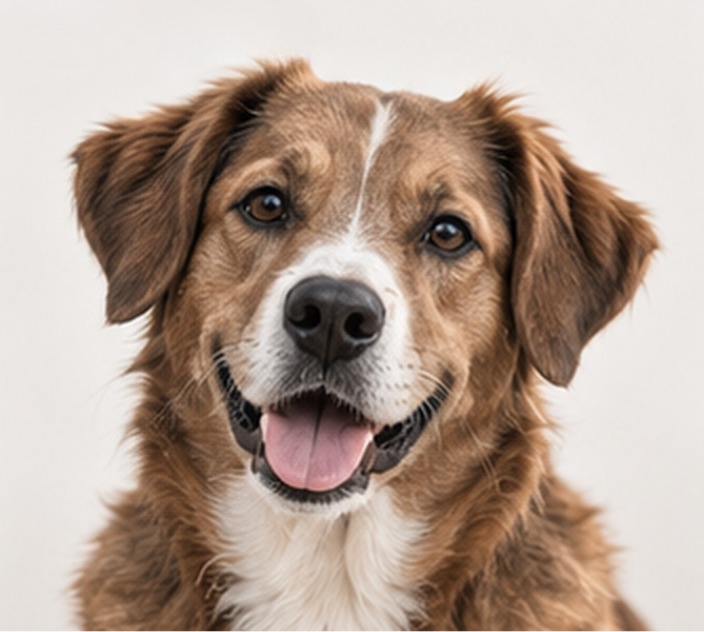
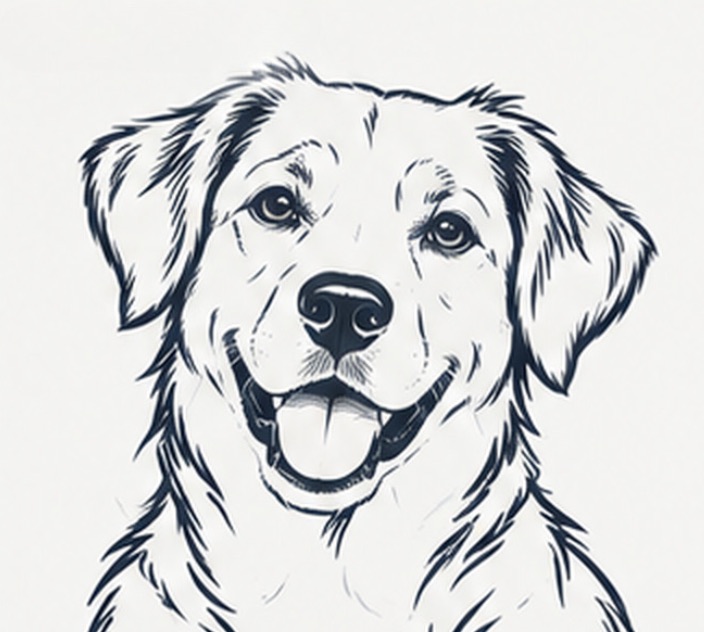
Example artwork shown for conversion direction; output detail varies with the source image and chosen workflow.
- Pick the production job before choosing SVG, PNG or another delivery format.
- Keep the original source and an editable master separate from any one delivery export.
- A clean vector result is a strong starting point, but the production vendor's specification wins.
Common questions
Keep the workflow moving
Vectorize a logo from PNG
Protect proportions, lettering and negative space before a logo handoff.
Prepare artwork for screen printing
Preflight colour layers, type and line weight for apparel production.
Convert a handwritten signature
Capture a clean, high-contrast mark before turning it into editable paths.