PNG to SVG converter and image vectorizer
Convert PNG, JPG, or WebP images into clean vector artwork for logos, line art, illustrations, signatures, print and apparel.
Drop an image to vectorize
or
Convert an image to vector artwork that stays sharp at any size
InkVectors is an image to SVG converter for the artwork that needs more range than a fixed pixel file. Upload a PNG, JPG, JPEG, or WebP, choose the level of detail you need, and turn the source into clean shapes and paths. The result is especially useful when a logo, signature, icon, or illustration must scale for print, apparel, signage, or an editable design workflow.
What a raster-to-vector converter does
A raster image is made from pixels. Vector artwork is rebuilt from paths, shapes, fills, and strokes, so it can be redrawn cleanly at a new size. This is not a promise to recover every missing photographic detail. It is a way to create a more flexible version of artwork with clear edges and a strong silhouette.
When to convert JPG to SVG
Start with the cleanest source you have. Logos, lettering, stamps, signatures, icons, and high-contrast line art are strong candidates. For a photograph or busy illustration, choose a simplified visual target rather than expecting a pixel-for-pixel copy. Enhanced is designed for images where finer detail matters.
See the direction, then inspect the details
A good conversion gives you a cleaner, more flexible artwork starting point. This example moves a raster photograph toward simplified line art. The right result depends on the source image and the job it needs to do next.
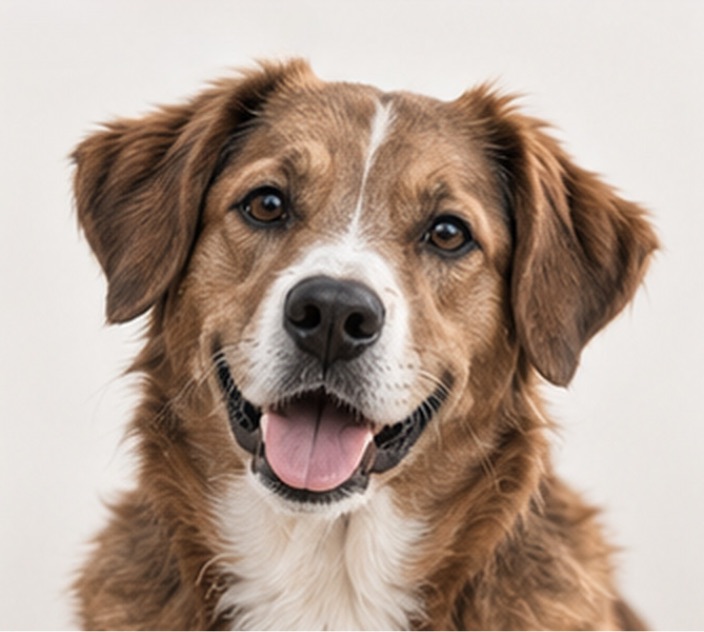
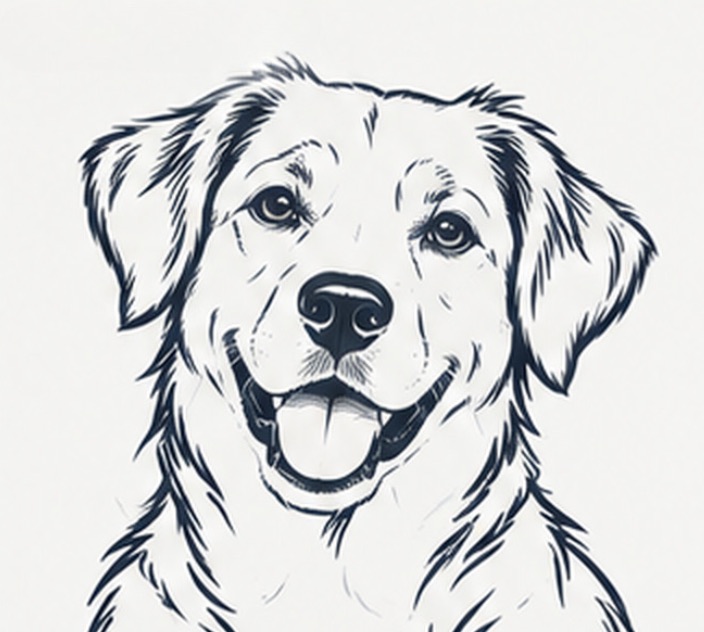
Check small lettering, tight corners and thin lines at the final display or print size before you deliver the file.
Before you upload
- Use the largest clean source. Sharp edges and strong contrast give the vectorizer clearer shapes to interpret.
- Choose the output job first. A web icon, cut file, T-shirt graphic, and editable logo each need different detail.
- Check the format you need. PNG is available on every plan; Creator and Studio include editable SVG downloads.
- Inspect the finished paths. Confirm that corners, lettering, and small details work at the final display or print size.
Choose the file format for the next step
Use a PNG when the place receiving your artwork accepts raster files and the final dimensions are known. Choose SVG when you need editable paths, a logo that can scale across multiple sizes, or a compatible print or cutting workflow. Creator and Studio plans include SVG downloads alongside PNG.
Learn when to use SVG instead of PNGPrepare artwork for its final use
For print, apparel, cutting, or embroidery, start with a clean source and a simple visual target. Remove unwanted background detail before uploading, check small lettering and corners after conversion, and confirm the supplied file with the printer, cutter, or embroidery provider before production.
Read the screen-print artwork checklistPNG to SVG converter questions
Can I convert a PNG or JPG to SVG?
InkVectors accepts PNG, JPG, JPEG and WebP files. Creator and Studio plans include editable SVG downloads; every plan includes a PNG result.
What images work best in an image vectorizer?
Logos, lettering, signatures, icons and high-contrast line art give the conversion clear shapes to rebuild. Detailed photographs are better suited to a simplified, stylized result.
Which quality should I choose?
Standard is a strong fit for logos, lettering and simple line art. Choose Enhanced when a photograph, group shot or busy illustration needs finer detail.
Should I use PNG or SVG for printing and cutting?
Use the format your production workflow requests. PNG is useful where a raster file is accepted; SVG is the editable, scalable option for design tools and compatible cutting or print workflows. Always inspect the final artwork at its intended size before production.